Assista - Virtual Assistant Service Elementor Template Kit Latest Version
Elementor Kits Themeforest 4.8 (4.6K reviews)
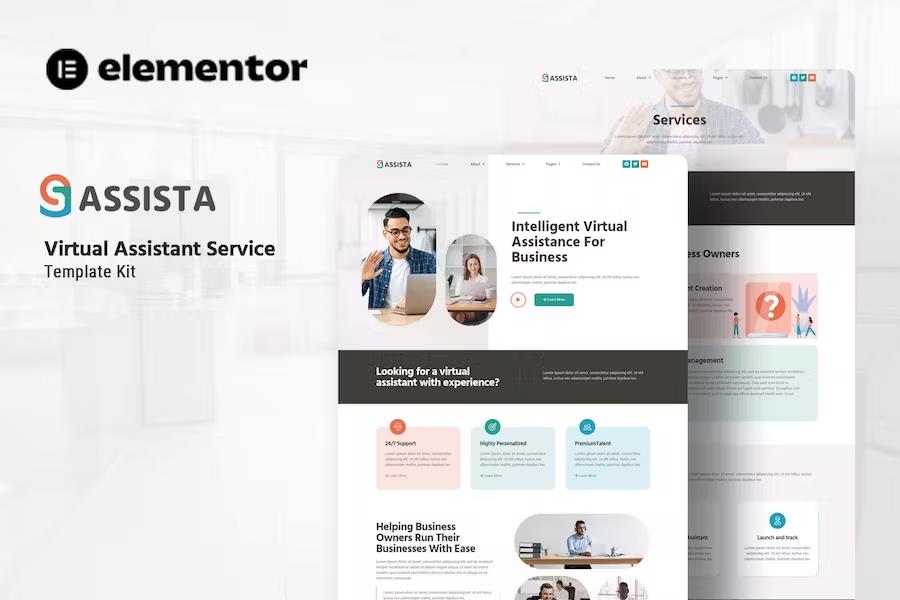
Assista is an Elementor template kit for Virtual Assistant Service agencies. professional and clean design. Assista uses free elements, so don't worry about trying this one. Assista provides various pages including Home, About Us, Team, Services, Single Services, Pricing, FAQs, Blog, Single Blog, 404, Contact Us
Plugin Dependencies :
- ElementsKit Lite
- Jeg Elementor Kit
- Metform
- Header, & Footer Builder
Templates
- Home
- About Us
- Team
- Services
- Single Services
- Pricing
- FAQs
- Blog
- Single Blog
- 404
- Contact Us
Font Used
- Hind Siliguri
- Roboto
How to Use Template Kits:
- Install and Activate the “Envato Elements” plugin from Plugins > Add New in WordPress
- Download your kit file and Do not unzip
- Go to Elements > Installed Kits and click the Upload Template Kit button. You may also import automatically by clicking Connect Account to link your Elements subscription, then import under Elements > Template Kits.
- Check for the orange banner at the top and click Install Requirements to load any plugins the kit uses
- Click import on the Global Kit Styles first
- Click Import on one template at a time. These are stored in Elementor under Templates > Saved Templates.
- Go to Pages and create a new page and click Edit with Elementor
- Click the gear icon at lower-left of the builder to view page settings and choose Elementor Full Width and hide page title
- Click the gray folder icon to access My Templates tab and then Import the page you’d like to customize.
**How to import Metform custom form **
- Import metform template -
- Import the template where the form appears, then edit in Elementor. -
- Click the Metform widget in the column where the form should be and click Edit Form. –
- Select New, leave blank selected then click Edit Form button –
- Click ‘Add Template’ grey folder button. –
- Click ‘My Templates’ tab. -
- Choose your imported metform template, then click ‘Insert’.
- Once the template is loaded, click ‘Update’.
This Template Kit uses demo images from Envato Elements. You will need to license these images from Envato Elements to use them on your website, or you can substitute them with your own.<br/><br/>
- https://elements.envato.com/collections/3F5TJ2XQMY
 Themeforest
- Last updated
- August 2, 2026
- Delivery
- Digital
- Availability
- In stock
- Version
- Latest Version
- Category
- Elementor Kits
- Item type
- template kit
Listed under Elementor Kits, Assista - Virtual Assistant Service Elementor Template Kit is a template kit. This presentation keeps the product name and recorded facts intact while organizing the details for easier review.
Usage rights depend on the license selected at checkout. Review the complete terms before using this item for client work, redistribution, SaaS, or more than one end product.