Teknocraft - Dark Theme Technology Blog Template Kit Latest Version
Others Themeforest 4.8 (3.5K reviews)
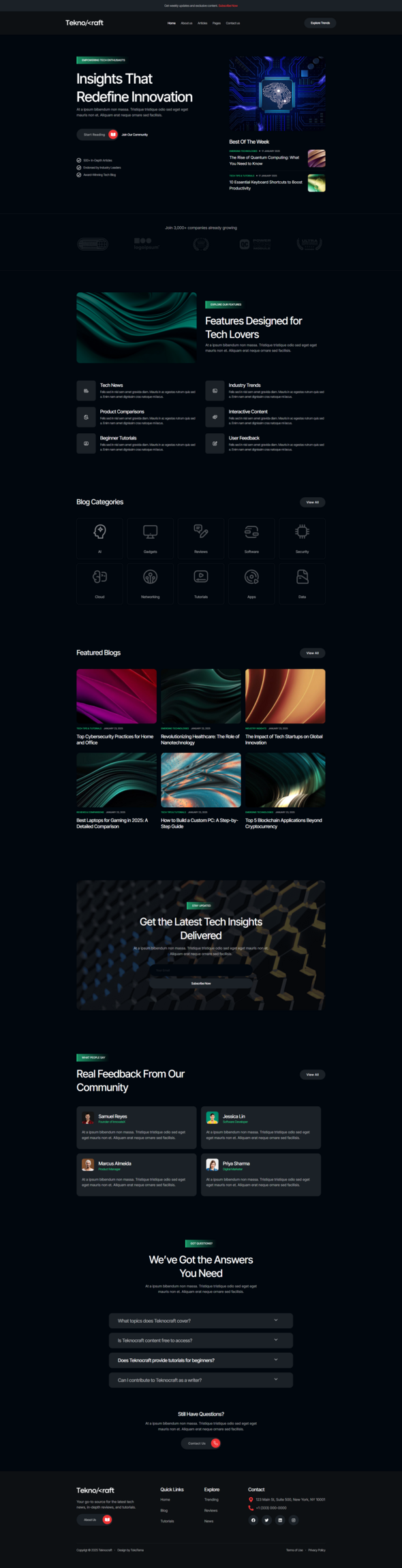
Teknocraft is a modern Elementor Kit designed for technology blogs, news websites, and industry insights. With a sleek dark theme, it enhances readability while providing a futuristic and professional aesthetic. Perfect for tech enthusiasts, startups, and content creators, this template delivers a fully responsive and SEO-friendly design to ensure optimal performance.
Featuring dynamic layouts, category-based content sections, and engaging typography, Teknocraft is built to highlight the latest innovations, industry trends, and expert insights. Easily customizable with Elementor, it requires no coding skills, allowing you to seamlessly create an engaging online presence.
Related products

 Themeforest

This template is optimized for fast loading speeds and offers essential blog functionalities, including detailed article pages, author sections, and interactive elements to enhance user engagement. Elevate your tech blog today with Teknocraft!
Features
- True no-code customization with drag and drop visual builder
- Customize fonts and colors in one place or fine-tune on individual elements
- Modern, professional design
- Fast-loading
- Works with most Elementor themes.
Included Pages:
- Home
- About Us
- Team
- Careers
- Articles
- Categories
- Single Post
- Help Center
- Contact Us
- Error 404
Plugins installed with kit
- Jeg Elementor Kit
- The Plus Addons
- Metform
* How to Use Template Kits: *
This is not a WordPress Theme. Template kits contain the design data for Elementor only and are installed using the envato Elements plugin for WordPress or directly through Elementor.
- Download your kit file from Envato and do not unzip it. If you use Safari browser you may need to ensure “Open safe files after downloading” is disabled in the browser preferences.
- Go to Settings > Permalinks and ensure Post Name is selected
- Go to Appearance > Themes > Add New and ensure Hello Elementor is installed and activated. This will prompt you to install Elementor if you haven’t already.
- Go to Plugins and ensure Elementor and Envato Elements are installed and at the latest version. If your kit requires Elementor Pro, it must be installed now and connected to your account.
- Go to Elements > Installed Kits and click Upload Template Kit Zip (or click your kit to view it)
- Check for the orange banner at the top and click Install Requirements to load any plugins the kit uses. https://envato.d.pr/ughD8Q
- Click import on the Global Kit Styles first. This will setup the site settings.
- Click Import on one template at a time in the order shown. These are stored in Elementor under Templates > Saved Templates and are re-used from here.
Creating pages
- Go to Pages and create a new page and click Edit with Elementor
- Click the gear icon at lower-left of the builder to view page settings and choose Elementor Full Width and hide page title
- Click the gray folder icon to access My Templates tab and then Import the page you’d like to customize.
- The home page is set under Settings > Reading by selecting Static Front Page.
If you have Elementor Pro, headers and footers are customized under Templates > Theme Builder.
Detailed Guide: https://help.market.envato.com/hc/en-us/articles/900000842846-How-to-use-the-Envato-Elements-WordPress-Plugin-v2-0
For further support, go to Elementor > Get Help in WordPress menu.
How to Import Metforms
If you have Elementor Pro, skip install of Metform and form blocks.
- Import the metform block templates
- Import the page template where the form appears and right-click to enable the Navigator
- Locate and select the Metform widget and click Edit Form. Choose New, then Edit Form. The builder will appear
- Click ‘Add Template’ grey folder icon.
- Click ‘My Templates’ tab.
- Choose your imported metform template, then click ‘Insert’ (click No for page settings).
- Once the template is loaded, make any desired customizations and click ‘Update & Close’ The form will appear in the template
- Click Update
How to setup header in Jeg Elementor Kit plugin
If you have Elementor Pro, headers and footers may be customized under Theme Builder.
- Go to Jeg Elementor Kit menu item > Header Template
- Click Add New Header
- Add condition > All Site and click Create
- Click gray folder icon to access My Templates tab
- Insert the header template.
- Customize and Save.
- https://elements.envato.com/collections/HC5JNUAK8L
This Template Kit uses demo images from Envato Elements. You will need to license these images from Envato Elements to use them on your website, or you can substitute them with your own.
- Last updated
- October 20, 2026
- Delivery
- Digital
- Availability
- In stock
- Version
- Latest Version
- Category
- Others
- Item type
- template kit
Listed under Others, Teknocraft - Dark Theme Technology Blog Template Kit is a template kit. This presentation keeps the product name and recorded facts intact while organizing the details for easier review.
Usage rights depend on the license selected at checkout. Review the complete terms before using this item for client work, redistribution, SaaS, or more than one end product.